
If you’re creating an academic paper, bibliography, or reference page, you may need to use a hanging indent. Many students and professionals use Canva to design documents and presentations but often struggle to find the hanging indent option.
In this guide, you’ll learn how to do a hanging indent on Canva, how to create hanging indents in Canva Docs, and alternative methods if the feature isn’t available.
What Is a Hanging Indent in Canva?
A hanging indent is a paragraph formatting style where:
- The first line starts at the left margin.
- Every line after the first is indented to the right.
Example:
Smith, J. The Future of AI.
New York Press, 2026.
Johnson, M. Digital Marketing Basics.
ABC Publishing, 2025.
Hanging indents are commonly used for:
- APA reference pages
- MLA Works Cited pages
- Chicago citations
- Bibliographies
- Professional reports
Can You Do a Hanging Indent in Canva?
Yes. Canva supports hanging indents in certain editors, including Canva Docs and some text editing environments. However, the process isn’t as obvious as it is in traditional word processors like Microsoft Word or Google Docs.
How to Create a Hanging Indent in Canva?
Follow these steps:
Step 1: Open Your Canva Document
Open your Canva design or Canva Docs document.
Step 2: Select the Text
Highlight the paragraph or citation that needs a hanging indent.
Step 3: Enable the Ruler
Navigate to:
File → View Settings → Show Rulers and Guides
Step 4: Adjust the Indent Markers
You’ll see two markers on the ruler:
- Top marker = First-line indent
- Bottom marker = Left indent
To create a hanging indent:
- Leave the top marker at the margin.
- Drag the bottom marker slightly to the right.
Your paragraph will now use a hanging indent.
How to Make a Hanging Indent on Canva Without the Ruler?
If the ruler option isn’t available:
Method 1: Use the Tab Key
Press Enter and then Tab before the second line.
Method 2: Add Spaces Manually
Insert spaces before each subsequent line.
This method works but may become misaligned if you edit the text later.
How to Do a Hanging Indent on Canva for APA Style?
APA formatting requires hanging indents in the reference section.
Example:
Brown, T. (2026). Artificial Intelligence and Education.
Academic Press.
Canva’s ruler tool makes formatting APA citations significantly easier.
How to Create a Hanging Indent for MLA Works Cited?
MLA formatting also requires a hanging indent:
Brown, Thomas. Artificial Intelligence and Education.
Academic Press, 2026.
When creating research papers or presentations with references, using hanging indents improves readability and ensures your citations follow academic standards.
Common Problems and Fixes
My Hanging Indent Isn’t Working
- Make sure the text is highlighted.
- Enable rulers and guides.
- Try using Canva Docs instead of a standard design page.
I Can’t Find the Ruler
The ruler feature may not be available in every Canva design type. Switching to Canva Docs often resolves the issue.
The Indent Keeps Moving
Avoid using multiple spaces. Use the ruler or tab method instead.
Why Use Canva for Academic Documents?
Canva is excellent for:
- Reports
- Infographics
- Presentations
- Research posters
- Educational materials
However, when you need to create presentations from documents, research papers, or outlines, manually designing slides can be time-consuming.
Turn Your Canva Documents Into Presentations With AI
Canva is great for creating documents, reports, and citation pages. But once your paper, assignment, or report is finished, you may also need to create a presentation to share your work.
Instead of building slides manually, you can use an AI presentation maker to instantly transform your content into a professional presentation.
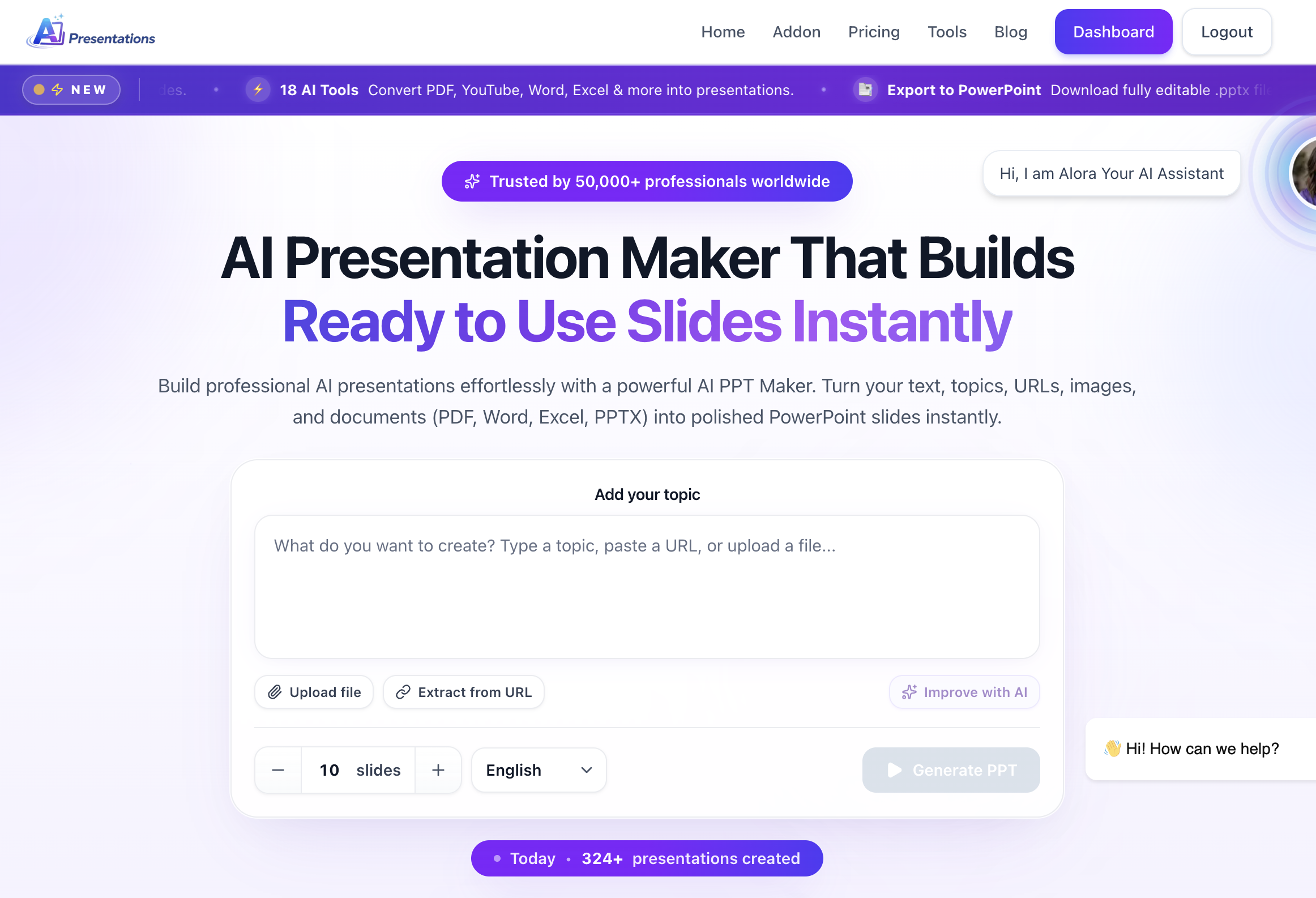
With AI-powered presentation tools like AI Presentations App, you can:
- Generate presentations from text, documents, PDFs, and topics.
- Create professional PowerPoint presentations in minutes.
- Automatically organize content into well-structured slides.
- Save hours of manual formatting and slide design.
- Export and edit presentations for school, work, or business meetings.
For example, if you’ve created a research paper or bibliography in Canva and need to present your findings, you can simply copy your content into an AI presentation generator and instantly get a polished presentation ready for editing and presenting.
This is especially useful for:
- Students creating class presentations
- Teachers preparing lesson slides
- Professionals building reports and proposals
- Researchers turning papers into presentations
- Businesses creating pitch decks and presentations quickly
By combining Canva’s document design capabilities with an AI presentation generator like AI Presentations App, you can go from a written document to a complete presentation in just a few minutes.
Final Thoughts
Learning how to do a hanging indent on Canva is essential for creating properly formatted citations, bibliographies, and reference pages. Whether you’re preparing an APA paper, MLA Works Cited page, or professional report, Canva provides several ways to create hanging indents.
And once your document is ready, you can save hours of manual work by using an AI presentation maker like AI Presentations App to instantly transform your content into beautiful presentations.
Frequently Asked Questions
Q1. What is a hanging indent in Canva?
A hanging indent is a formatting style where the first line stays at the margin and all following lines are indented.
Q2. Can you create a hanging indent in Canva Docs?
Yes. Canva Docs supports hanging indents through its ruler feature.
Q3. How do I indent the second line in Canva?
Use the ruler, tab key, or manually insert spaces.
Q4. Why do APA and MLA formats use hanging indents?
Hanging indents make citations easier to scan and improve the readability of reference lists.
Q5. Is Canva good for academic papers?
Canva works well for visually appealing documents, reports, and presentations, although advanced formatting features may be more limited than dedicated word processors.