
If you’ve ever received a PowerPoint presentation but needed to collaborate using Google Workspace, you’ve probably wondered how to transfer PowerPoint to Google Slides without breaking the formatting.
I’ve worked with both Microsoft PowerPoint and Google Slides for years, and one of the most common tasks I perform is converting presentations between the two platforms. While the process is simple, I’ve learned that there are a few important details that can save you from formatting headaches later.
In this guide, I’ll show you exactly how to convert PowerPoint to Google Slides, explain what happens during the conversion process, share common issues I’ve encountered, and provide practical tips to preserve your presentation’s design.
By the end, you’ll know how to upload PowerPoint to Google Slides, edit PPTX files online, and avoid the most common conversion mistakes.
Quick Answer: How to Convert PowerPoint to Google Slides
If you’re looking for the fastest method:
- Open Google Drive.
- Upload your PowerPoint (.PPT or .PPTX) file.
- Right-click the file.
- Select Open With → Google Slides.
- Click File → Save as Google Slides.
Google Slides will automatically convert the PowerPoint presentation into an editable Google Slides file.
Can Google Slides Open PowerPoint Files?
Yes.
Google Slides supports both:
- PPT files
- PPTX files
This means you can upload PowerPoint presentations directly into Google Drive and open them in Google Slides without installing additional software.
In my experience, standard presentations containing text, images, charts, and tables usually transfer very well. However, presentations with advanced animations, custom fonts, or complex SmartArt graphics may require minor adjustments after conversion.
Why Transfer PowerPoint to Google Slides?
Many users move from PowerPoint to Google Slides because of the collaboration benefits.
Some advantages include:
- Real-Time Collaboration: Multiple team members can edit slides simultaneously.
- Cloud Accessibility: Access presentations from any device with an internet connection.
- Automatic Saving: Google Slides automatically saves changes.
- Easy Sharing: Instead of emailing large presentation files, you can simply share a link.
For teams already using Google Workspace, converting PowerPoint files to Google Slides often creates a more efficient workflow.
Step-by-Step Guide: Upload PowerPoint to Google Slides
Open Google Drive. Click the New button.
Select File Upload.
Choose your PowerPoint presentation. Wait for the upload to complete.
Locate the uploaded file. Right-click it.
Select:
Open With → Google Slides
Google Slides will begin converting the presentation automatically.
Once the file opens:
- Click File
- Select Save as Google Slides
This creates a native Google Slides version while preserving the original PowerPoint file.
I always recommend saving a separate Google Slides copy rather than overwriting the original presentation. This gives you a backup if anything doesn’t convert perfectly.
What Happens During PowerPoint Conversion?
Many people assume Google Slides simply copies the presentation.
That’s not exactly what happens.
Google Slides translates PowerPoint-specific elements into its own format.
Most content transfers successfully, but compatibility varies by feature.
| Presentation Element | Conversion Success |
| Text | Excellent |
| Images | Excellent |
| Tables | Excellent |
| Charts | Good |
| Videos | Usually Good |
| Speaker Notes | Usually Preserved |
| Hyperlinks | Excellent |
| SmartArt | Sometimes Modified |
| Custom Fonts | May Change |
| Advanced Animations | Often Lost |
This compatibility gap is one reason I always review every slide after converting a PPTX file to Google Slides.
Common PowerPoint to Google Slides Formatting Issues
After converting hundreds of presentations, I’ve noticed several recurring problems.
1. Missing Fonts
This is by far the issue I encounter most often.
If PowerPoint uses a font unavailable in Google Slides, Google automatically replaces it.
Solution
Use widely supported fonts such as:
- Arial
- Calibri
- Roboto
- Open Sans
before converting.
2. Broken Layouts
Complex slide layouts sometimes shift during conversion.
Text boxes may move slightly, and image placement can change.
Solution
Review:
- Title alignment
- Image positioning
- Spacing
- Slide dimensions
after importing.
3. Animation Problems
PowerPoint supports more advanced animations than Google Slides.
In my testing, advanced motion effects often disappear entirely during conversion.
Solution
Rebuild important animations using Google Slides’ built-in animation tools.
4. SmartArt Conversion Issues
SmartArt frequently converts poorly.
I’ve found that converting SmartArt to grouped shapes before importing significantly improves results.
My Personal Checklist After Every Conversion
Whenever I transfer a PowerPoint presentation to Google Slides, I spend five minutes checking:
✓ Fonts
✓ Charts
✓ Images
✓ Speaker notes
✓ Animations
✓ Embedded videos
✓ Hyperlinks
✓ Slide layouts
This quick review helps catch issues before presenting to clients, colleagues, or stakeholders.
PowerPoint vs Google Slides: Which Is Better?
The answer depends on your needs.
| Feature | PowerPoint | Google Slides |
| Offline Editing | Excellent | Limited |
| Collaboration | Good | Excellent |
| Cloud Sharing | Good | Excellent |
| Design Flexibility | Excellent | Good |
| Advanced Animations | Excellent | Limited |
| Team Workflows | Good | Excellent |
| Accessibility | Good | Excellent |
I generally recommend Google Slides for collaboration-heavy projects and PowerPoint for highly designed presentations requiring advanced visual effects.
A Faster Way to Create Presentations with AI
One thing I’ve noticed over the years is that presentation conversion isn’t usually the biggest challenge.
Creating the presentation itself often takes far longer.
That’s why many professionals are now using AI-powered presentation generators.
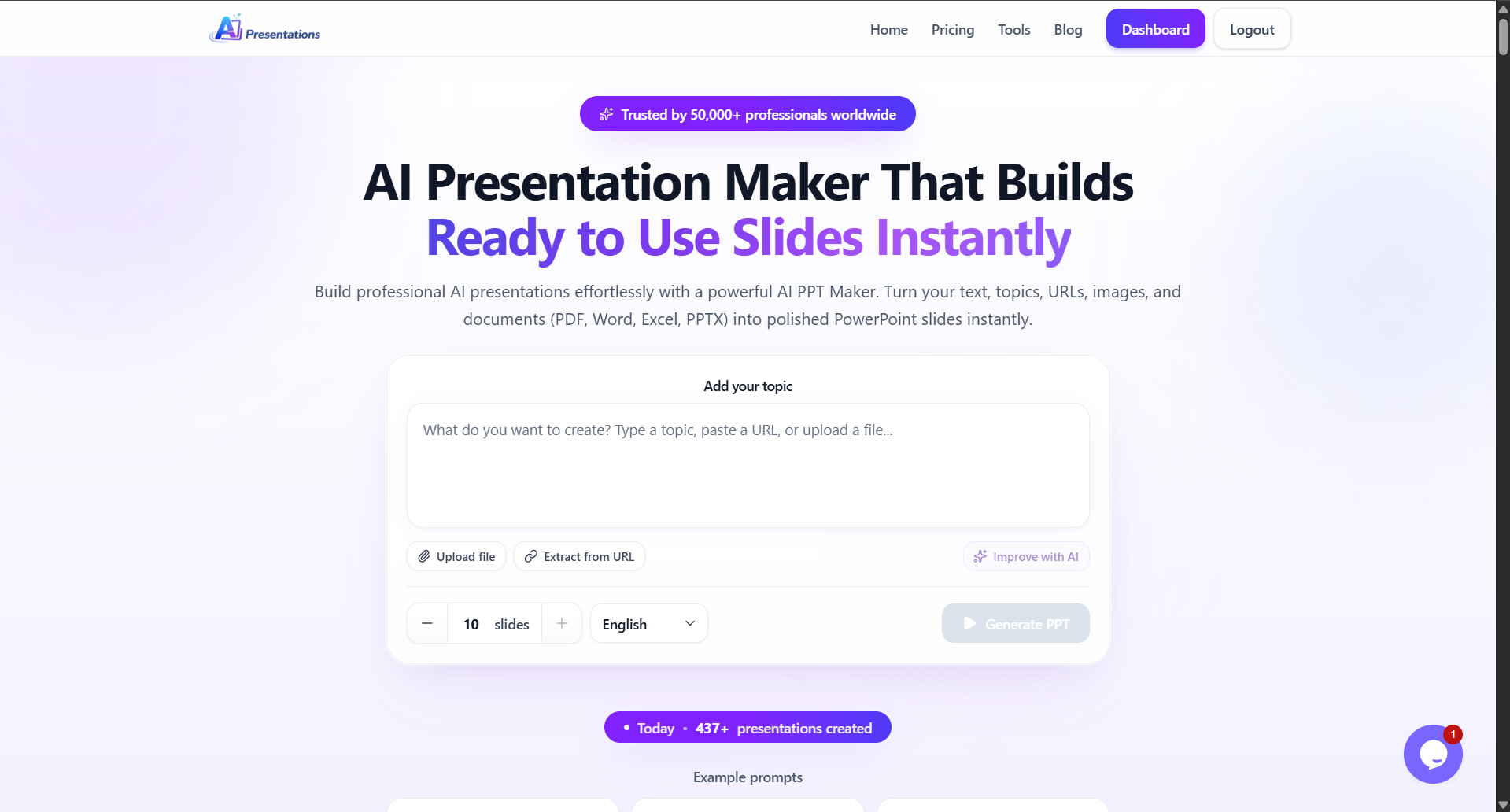
For example, AI Presentations App allows users to generate presentations from several formats. It allows you to convert:
- Topics to PPT
- Documents to PPT
- PDFs to PPT
- URLs to PPT
- Images to PPT
- Text to PPT
- HTML to PPT
- YouTube to PPT
- Existing PowerPoint files to Better PPT
Instead of spending hours building slides manually and then converting them between platforms, you can generate a complete presentation, edit it using AI, and export it as a PowerPoint file that works with both Microsoft PowerPoint and Google Slides.
For teams that regularly create presentations, this can dramatically reduce preparation time.
Best Practices for Importing PowerPoint Into Google Slides
To achieve the best results:
- Use Standard Fonts: Avoid obscure or proprietary fonts whenever possible.
- Keep Layouts Simple: Complex designs are more likely to break during conversion.
- Compress Large Images: Large media files can slow uploads and affect performance.
- Test Before Presenting: Always review your converted presentation before sharing it.
- Keep the Original File: Never delete the original PowerPoint presentation until you’ve confirmed the Google Slides version is accurate.
Final Thoughts
Transferring PowerPoint to Google Slides is usually a straightforward process. Simply upload the PPT or PPTX file to Google Drive, open it with Google Slides, and save it as a native Google Slides presentation.
In my experience, most presentations convert successfully with minimal issues. The biggest challenges typically involve custom fonts, SmartArt graphics, and advanced animations. By reviewing your slides after conversion and following the best practices outlined above, you can avoid most compatibility problems.
If you frequently create presentations from scratch, consider using AI-powered tools like AI Presentations to streamline the entire workflow. Rather than manually building slides and then converting them between formats, you can generate, edit, and export presentation-ready files that work seamlessly across both PowerPoint and Google Slides.
Frequently Asked Questions
Q1. Can Google Slides Open PowerPoint Files?
Yes. Google Slides supports both PPT and PPTX files.
Q2. How Do I Convert PPTX to Google Slides Online?
Upload the PPTX file to Google Drive, open it with Google Slides, and save it as a Google Slides presentation.
Q3. Can I Edit PowerPoint in Google Slides?
Yes. Once imported, you can fully edit the presentation.
Q4. Why Does My PowerPoint Look Different in Google Slides?
Differences usually occur because of unsupported fonts, SmartArt elements, or advanced animations.
Q5. Is Google Slides Free?
Yes. Google Slides is available free with a Google account.
Q6. Can I Convert Google Slides Back to PowerPoint?
Yes. Go to:
File → Download → Microsoft PowerPoint (.pptx)
to export the presentation.
Q7. Does Google Slides Support PowerPoint Animations?
Basic animations may transfer successfully, but advanced PowerPoint animations often require manual recreation.