
Choosing between Canva and PowerPoint isn’t about finding the “better” tool it’s about choosing the one that fits your workflow.
I’ve used both for different types of presentations. Canva makes it easy to create visually appealing slides quickly, while Microsoft PowerPoint offers advanced editing and presentation features for professional use.
In this comparison, I’ll break down the key differences between Canva and PowerPoint, including ease of use, templates, AI features, collaboration, pricing, and real-world use cases. By the end, you’ll know which tool is the right choice for your needs.
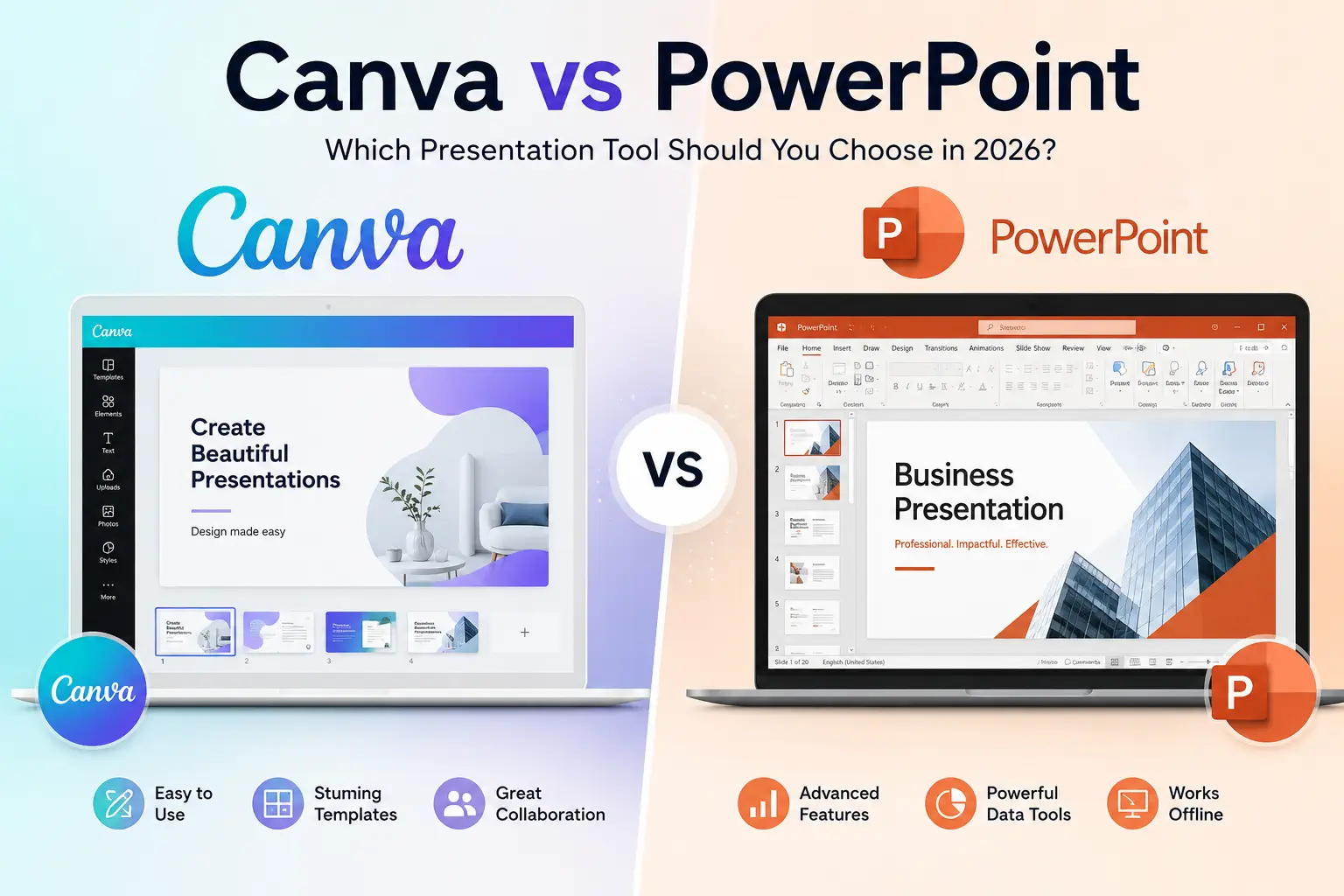
Canva vs PowerPoint at a Glance
| Feature | Canva | PowerPoint |
|---|---|---|
| Best For | Beginners, marketers, educators | Business professionals, corporate teams |
| Ease of Use | ⭐⭐⭐⭐⭐ | ⭐⭐⭐⭐☆ |
| Templates | Excellent | Very Good |
| AI Features | Magic Design, Magic Write | Microsoft Copilot |
| Collaboration | Excellent | Excellent (Microsoft 365) |
| Offline Access | Limited | Full |
| Advanced Animations | Basic | Excellent |
| Charts & Data | Basic | Advanced |
| Pricing | Free + Pro | Free (Web) + Microsoft 365 |
| Overall | Best for design | Best for professional presentations |
Quick Recommendation
- Choose Canva if you want beautiful presentations with minimal effort.
- Choose PowerPoint if you need advanced presentation tools and offline editing.
Canva vs PowerPoint: Key Differences
1. Ease of Use
If you’re new to presentation design, Canva is easier to learn. Its drag-and-drop editor, ready-made templates, and simple interface let you build attractive presentations without any design experience.
PowerPoint has improved over the years, but it still offers many advanced features that can feel overwhelming for beginners. The trade-off is greater flexibility once you become familiar with the software.
Winner: Canva
2. Templates & Design
Canva is known for its modern, professionally designed templates. Whether you’re creating a pitch deck, classroom presentation, portfolio, or marketing proposal, you’ll find thousands of customizable layouts.
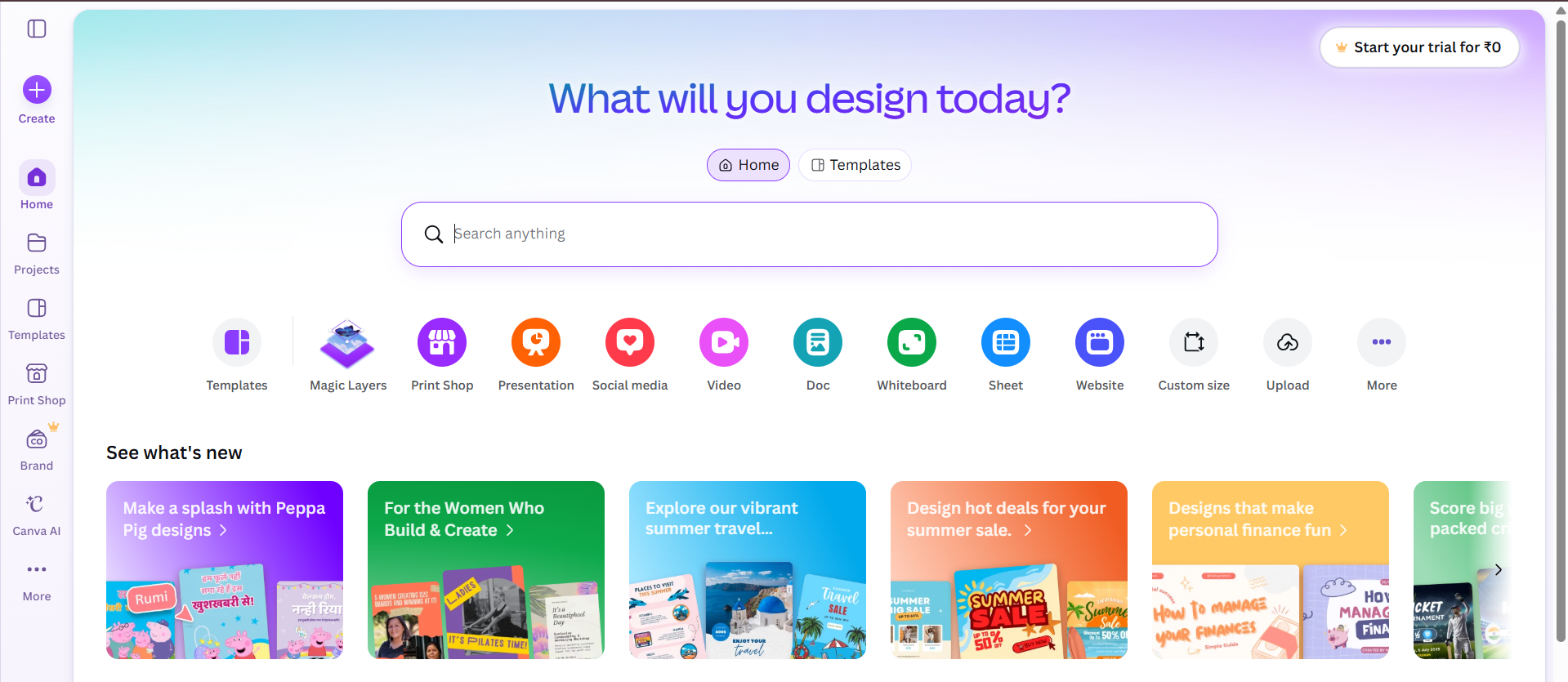
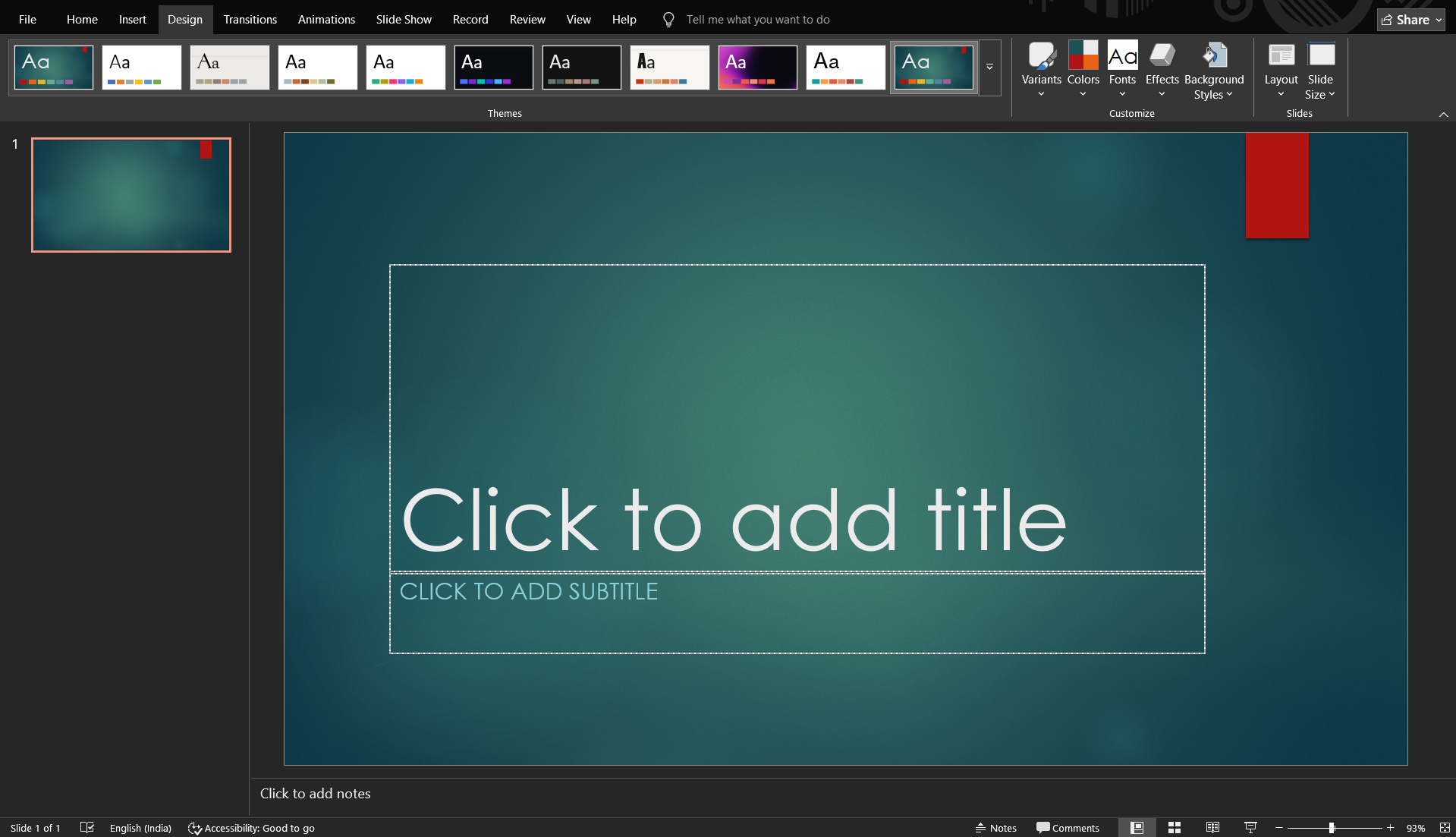
PowerPoint also includes quality templates, but many users rely on third-party template libraries for more modern designs.
If visual appeal is your top priority, Canva has the advantage.
Winner: Canva
3. AI Features
Both tools now include AI capabilities, but they serve different purposes.
Canva offers features like Magic Design and Magic Write to help generate layouts and content. Microsoft PowerPoint integrates Copilot, which can create presentations, summarize documents, and suggest slide improvements within the Microsoft ecosystem.
If your goal is to generate an entire presentation from sources like PDFs, YouTube videos, URLs, meeting notes, or documents, a dedicated tool such as AI Presentations can speed up the first draft. You can then export the presentation to PowerPoint or Google Slides for further editing.
Winner: Tie
4. Collaboration
Both platforms support real-time collaboration.
Canva makes sharing straightforward with browser-based editing and commenting, making it a popular choice for small teams and educators.
PowerPoint offers similar collaboration through Microsoft 365, making it a strong option for organizations already using Microsoft Teams, OneDrive, and SharePoint.
Winner: Tie
5. Advanced Presentation Features
This is where PowerPoint stands out.
It offers advanced animations, Morph transitions, Presenter View, SmartArt, detailed chart tools, slide masters, and powerful formatting controls. These features are especially useful for business presentations, conferences, investor pitches, and data-heavy reports.
Canva focuses more on simplicity than advanced presentation functionality.
Winner: PowerPoint
6. Pricing
| Canva | PowerPoint |
|---|---|
| Free plan available | Free web version available |
| Canva Pro for premium templates and AI features | Microsoft 365 subscription unlocks desktop apps and Copilot |
If you already pay for Microsoft 365, PowerPoint provides excellent value. If you only need an easy-to-use presentation tool, Canva’s free plan is more than enough for many users.
Winner: Tie
Canva vs PowerPoint: Pros and Cons
| Feature | Canva | PowerPoint |
|---|---|---|
| Pros | • Beginner-friendly interface • Beautiful ready-made templates • Fast drag-and-drop editing • Strong collaboration features • Great for social media and presentations |
• Powerful presentation features • Advanced animations and transitions • Excellent for business presentations • Full offline support • Strong data visualization tools |
| Cons | • Limited advanced presentation tools • Fewer animation options • Internet connection required for most features |
• Slightly steeper learning curve • Premium features require Microsoft 365 • Modern templates are more limited than Canva |
Which One Should You Choose?
Choose Canva if you:
- Want to create presentations quickly
- Prefer professionally designed templates
- Have little or no design experience
- Work mainly in the browser
- Collaborate frequently with teammates
Choose PowerPoint if you:
- Create presentations for work or clients
- Need advanced animations and transitions
- Present offline
- Build reports with charts and complex layouts
- Already use Microsoft 365
Want to Create Presentations Faster?
Whether you choose Canva or PowerPoint, creating the first draft often takes the most time.
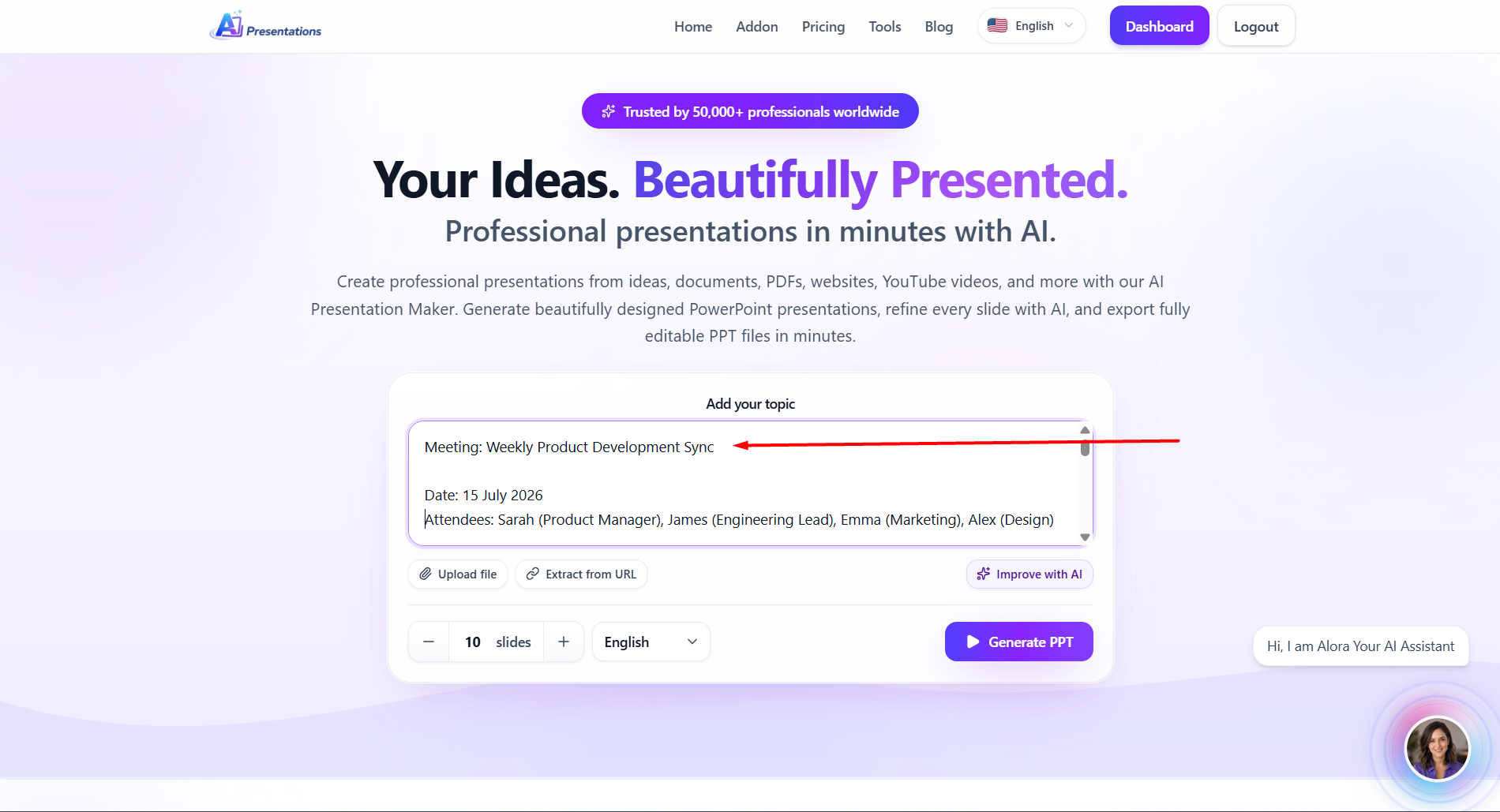
Instead of starting with a blank slide, you can use AI Presentations to generate complete presentations from text, PDFs, URLs, YouTube videos, meeting notes, and documents. Once generated, you can continue refining your slides in PowerPoint or Google Slides.
This approach saves time while giving you full control over the final presentation.
Also read: Common Presentation Mistakes and How to Avoid Them
FAQs
Q1. Is Canva better than PowerPoint?
Canva is better for beginners and users who want attractive presentations quickly. PowerPoint is better for advanced editing, business presentations, and offline work.
Q2. Can Canva replace PowerPoint?
For basic and moderately complex presentations, yes. However, PowerPoint remains the better choice for advanced animations, detailed formatting, and enterprise use.
Q3. Which is better for students?
Canva is ideal for most students because it’s easy to learn and offers a generous free plan with attractive templates.
Q4. Can Canva open PowerPoint files?
Yes. Canva allows you to import and edit PowerPoint (.pptx) files, although some formatting or animations may not transfer perfectly.
Q5. Does Canva work offline?
Canva is primarily cloud-based. While limited offline functionality exists in some apps, PowerPoint offers a much stronger offline experience.
Q6. Which tool has better AI features?
Both platforms offer useful AI features. Canva focuses on design assistance, while PowerPoint’s Copilot integrates with Microsoft 365. If you want to generate complete presentations from multiple content sources, a dedicated AI presentation generator provides a more specialized workflow.
Final Verdict
Neither Canva nor PowerPoint is universally better they excel in different areas.
Choose Canva if you value simplicity, modern templates, and quick design.
Choose PowerPoint if you need professional-grade presentation tools, advanced animations, and offline functionality.
If your biggest challenge is creating presentations from scratch, consider using AI tools to generate the initial draft before polishing it in your preferred presentation software.
Related: PowerPoint vs Google Slides: Which Presentation Software Should You Use?