
If you’ve created a presentation in Apple Keynote but need to share it with someone using Microsoft PowerPoint, you’ll need to convert your Keynote file to PPT (PPTX). This is a common requirement for business meetings, client presentations, classrooms, and cross-platform collaboration.
The good news is that converting Keynote to PPT is straightforward. Apple Keynote includes a built-in export option, and there are online alternatives if you don’t have access to a Mac. However, not every conversion is perfect fonts, animations, videos, and layouts can sometimes change during the process.
In this guide, I’ll show you the best ways to convert Keynote to PowerPoint, explain how to avoid common formatting issues, and share practical tips to keep your presentation looking professional after conversion.
What Is a Keynote File?
A Keynote file (.key) is the presentation format used by Apple Keynote, Apple’s presentation software available on macOS, iPadOS, and iOS. Like Microsoft PowerPoint uses .pptx, Keynote uses .key to store slides, images, animations, charts, videos, and speaker notes.
While Keynote is an excellent presentation tool for Apple users, the PPTX format remains the industry standard. Most businesses, educational institutions, and organisations use Microsoft PowerPoint because it works across Windows, macOS, and the web.
Converting your Keynote presentation to PowerPoint ensures your slides are easier to share, edit, and present, regardless of the device or operating system your audience uses.
Why Convert Keynote to PPT?
Although Apple Keynote and Microsoft PowerPoint serve the same purpose, PowerPoint (PPTX) is the more widely accepted presentation format. Converting your Keynote file makes it easier to share, edit, and present your slides without compatibility issues.
Here are the most common reasons to convert Keynote to PPT:
- Share presentations with anyone: Most colleagues, clients, and teachers use Microsoft PowerPoint.
- Ensure cross-platform compatibility: PPTX works on Windows, macOS, Microsoft 365, and many third-party presentation tools.
- Collaborate more easily: Team members can edit and review PowerPoint presentations without needing Apple Keynote.
- Meet business and academic requirements: Many organisations specifically request presentations in PPT or PPTX format.
- Present with confidence: Conference rooms, office projectors, and presentation systems are typically configured for PowerPoint files.
- Reuse existing slides: A PPTX file is easier to update, redesign, or integrate into future presentations.
If you’re working with Apple devices but your audience isn’t, exporting your presentation to PowerPoint is the safest way to maintain accessibility and avoid last-minute presentation issues. Even after conversion, it’s a good idea to review your slides to ensure fonts, animations, images, and layouts appear as expected.
Method 1: Convert Keynote to PPT Using Apple Keynote (Best Method)
If you have access to a Mac, the easiest and most reliable way to convert Keynote to PPT is by using Keynote’s built-in export feature. Since Apple developed this option specifically for PowerPoint compatibility, it usually preserves your presentation’s layout, images, charts, and most animations.
Step 1: Open Your Keynote Presentation
Launch Apple Keynote and open the .key file you want to convert.
Step 2: Go to Export Options
From the top menu, click:
File → Export To → PowerPoint
This tells Keynote to create a PowerPoint-compatible version of your presentation.
Step 3: Choose Export Settings
Depending on your presentation, you may see options to:
- Require a password to open the presentation.
- Enable playback settings (if applicable).
For most users, the default settings work perfectly. Click Next to continue.
Step 4: Save the PowerPoint File
Choose where you want to save the file, give it a name, and click Export.
Keynote will create a .pptx file that you can open in Microsoft PowerPoint or upload to other presentation platforms.
Step 5: Review the Converted Presentation
Before sharing or presenting, open the PPTX file and check:
- Fonts display correctly.
- Images are properly aligned.
- Charts and tables look accurate.
- Animations and transitions work as expected.
- Videos and audio still play correctly.
Most presentations convert without major issues, but complex designs, custom fonts, and advanced Keynote animations may require minor adjustments.
Tip: If your presentation includes unique Apple-only transitions or effects, consider replacing them with standard animations before exporting for the best compatibility.
Method 2: Convert Keynote to PPT Online (Without a Mac)
Don’t have access to a Mac? You can still convert a Keynote file to PPT using an online file converter. This is a convenient option when you’re using Windows, ChromeOS, or another device that doesn’t support Apple Keynote.
The exact steps vary by service, but the process is generally the same.
Step 1: Upload Your Keynote File
Open a trusted online Keynote-to-PowerPoint converter and upload your .key file.
Before uploading, check:
- The maximum supported file size.
- Whether your file is automatically deleted after conversion.
- The platform’s privacy policy if your presentation contains sensitive information.
Step 2: Start the Conversion
Select PowerPoint (PPTX) as the output format and begin the conversion.
Most tools complete the process within a few seconds, depending on the file size.
Step 3: Download the PPTX File
Once the conversion is complete, download the PowerPoint file and open it in Microsoft PowerPoint to review the results.
Best practice: If your presentation contains confidential business, financial, or personal information, use Apple’s built-in export feature whenever possible instead of uploading the file to an online converter. This helps keep your data under your control.
Common Problems After Converting Keynote to PowerPoint
Most Keynote to PPT conversions work well, but you may notice a few formatting issues. Here’s how to fix the most common ones.
Fonts Changed: PowerPoint may replace fonts that aren’t installed on your computer.
Fix: Use common fonts like Arial or Calibri, or install the original fonts before opening the PPT file.
Animations Missing: Some Keynote animations and transitions aren’t supported in PowerPoint.
Fix: Replace unsupported effects with standard PowerPoint animations.
Images or Layout Shifted: Images, text boxes, or shapes may move slightly after conversion.
Fix: Review each slide and adjust the alignment where needed.
Videos or Audio Not Playing: Embedded media may not transfer correctly.
Fix: Test all media after conversion and reinsert files if necessary.
Also read: How to Convert Webinar to Presentation?
How to Keep Formatting Intact During Conversion?
While no conversion is perfect, these best practices will help preserve your presentation’s design and reduce formatting issues.
- Use standard fonts like Arial, Calibri, or Helvetica for better compatibility.
- Avoid Apple-exclusive animations and transitions, as they may not work in PowerPoint.
- Embed images and media instead of linking to external files.
- Keep your Keynote app updated to benefit from the latest export improvements.
- Review the PPTX file after conversion and fix any layout or formatting issues before sharing.
Tip: If your presentation is important, always do a quick slide-by-slide review in Microsoft PowerPoint before presenting or sending it to others.
Edit and Enhance Your Converted PPT with AI
Converting your Keynote file to PPT is only the first step. After conversion, you may want to refresh the design, improve the content, or make the presentation more engaging. Instead of manually updating every slide, AI Presentations helps you polish your converted PowerPoint in minutes, making it ready for meetings, client pitches, or classroom presentations.
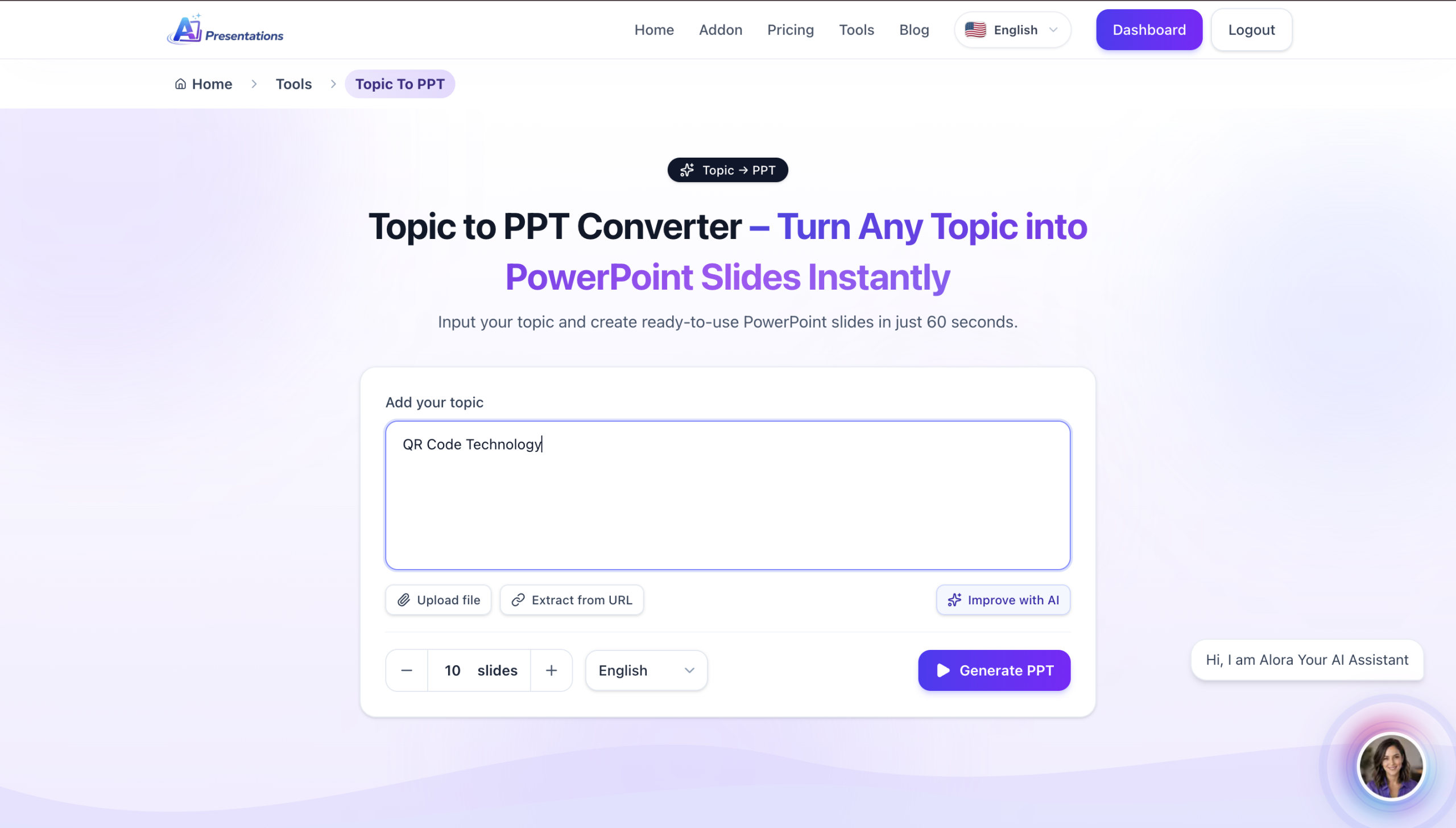
With AI, you can upload your converted PowerPoint and:
- Improve slide design with professional templates.
- Rewrite or shorten text for better clarity.
- Generate speaker notes and presentation summaries.
- Add AI-generated visuals and icons.
- Maintain a consistent layout and branding across all slides.
Keynote vs PowerPoint
Choosing between Apple Keynote and Microsoft PowerPoint depends on your workflow and who you’ll be sharing presentations with.
| Feature | Apple Keynote | Microsoft PowerPoint |
| Best For | Apple users | Business, education, and teams |
| File Format | .key | .pptx |
| Platform | macOS, iPhone, iPad | Windows, macOS, Web, Mobile |
| Collaboration | Apple ecosystem | Cross-platform collaboration |
| Compatibility | Limited outside Apple devices | Works almost everywhere |
If you’re collaborating with clients, colleagues, or classmates, PowerPoint (PPTX) is generally the better choice because it’s widely supported across devices and presentation software. If you create presentations in Keynote, converting them to PPT ensures they’re easy to share and edit regardless of the platform.
Related: How to Convert Meeting Notes to Presentation?
FAQs
Q1. How do I convert Keynote to PPT?
Open your presentation in Apple Keynote, then go to File → Export To → PowerPoint. Save the exported file as a .pptx and open it in Microsoft PowerPoint.
Q2. Can PowerPoint open Keynote files directly?
No. Microsoft PowerPoint cannot open .key files directly. You must first export the presentation from Keynote or use an online converter to create a PPTX file.
Q3. Will I lose formatting when converting Keynote to PowerPoint?
Most formatting is preserved, but custom fonts, Apple-exclusive animations, and certain transitions may change. Always review the converted presentation before sharing it.
Q4. Can I convert Keynote to PPT without a Mac?
Yes. You can use a trusted online Keynote-to-PowerPoint converter if you don’t have access to Apple Keynote.
Q5. What’s the best way to convert Keynote to PowerPoint?
Using Apple Keynote’s built-in Export to PowerPoint feature is the most reliable method because it provides the best compatibility and preserves the original presentation as accurately as possible.
Conclusion
Converting Keynote to PPT is simple, whether you use Apple’s built-in export feature or an online converter. For the best results, export directly from Keynote, review the converted slides, and fix any minor formatting issues before presenting.
Also read: How to Convert PowerPoint to Google Slides?