
If you are wondering how to change slide size in PowerPoint, the process is straightforward: open the Design tab, select Slide Size, and choose Standard (4:3), Widescreen (16:9), or Custom Slide Size. The right size depends on where your presentation will be shown, printed, or shared. If you are starting a new deck and want to avoid building every slide from scratch, AI Presentations App can help you create a structured presentation that you can refine and export to PowerPoint.
This guide explains the current PowerPoint process in detail, including 16:9 versus 4:3, custom dimensions, portrait slides, pixels, printing, resizing an existing deck, Maximize versus Ensure Fit, and the layout problems you should check after changing the dimensions.
How to Change Slide Size in PowerPoint?
Microsoft’s current instructions use the same basic workflow in recent PowerPoint versions.
- Open your PowerPoint presentation.
- Select the Design tab.
- Select Slide Size near the right side of the ribbon.
- Choose Standard (4:3), Widescreen (16:9), or Custom Slide Size.
- If PowerPoint asks how to scale existing content, choose Maximize or Ensure Fit.
- Review every important slide after the change.
Microsoft confirms that slide-size changes apply to the presentation as a whole. You cannot use the normal Slide Size command to make only one slide a different physical size. Orientation is also applied to the presentation rather than independently to individual slides. Microsoft’s official slide-size documentation is the best reference if your version displays slightly different menu wording.
What Is the Default PowerPoint Slide Size?
For new presentations, PowerPoint currently uses a 16:9 widescreen format by default. This is generally the best starting point for modern presentations because laptops, conference-room displays, televisions, and many online presentation environments use widescreen displays.
| Format | Dimensions | Good choice for |
|---|---|---|
| Widescreen (16:9) | 13.333 × 7.5 inches | Most modern presentations, meetings, classrooms, projectors and screens |
| Standard (4:3) | 10 × 7.5 inches | Older displays, legacy presentations and specific environments |
| On-screen Show (16:9) | 10 × 5.625 inches | Another 16:9 preset with the same aspect ratio |
| Custom | Your chosen dimensions | Print, posters, social graphics, portrait layouts and specialized formats |
Widescreen and On-screen Show are both 16:9, so their shape is the same. Microsoft notes that Widescreen provides more slide surface area and is the better choice for presentations.
16:9 vs. 4:3: Which PowerPoint Slide Size Should You Use?
Choose 16:9 for most modern presentations
Use 16:9 when your presentation will be displayed on a modern laptop, monitor, TV, conference-room screen, classroom display, or shared during an online meeting. It gives you a wide canvas for charts, images, diagrams and side-by-side content.
Choose 4:3 when the environment requires it
4:3 was widely used by older monitors and projectors. You may still need it when updating a legacy corporate presentation, using older presentation equipment, or following a specific organization template. Confirm the target display or template first rather than guessing.
How to Change PowerPoint to Custom Slide Size?
PowerPoint can create custom presentations for print, portrait documents, posters, social content, or other requirements.
- Go to Design.
- Select Slide Size.
- Select Custom Slide Size.
- Choose a preset under Slides sized for, or enter your own Width and Height.
- Choose the desired Orientation.
- Select OK.
- Choose the appropriate scaling option when prompted.
Current PowerPoint guidance allows custom measurements in inches, centimeters, or pixels. Microsoft documents minimum and maximum dimensions for custom slides, so if you need an unusual format, check the limits in your version.
Examples of custom PowerPoint sizes
- Portrait presentation: Set the height greater than the width.
- Square graphic: Use equal width and height when the destination requires a square canvas.
- Printed document: Select the appropriate paper preset or enter the required dimensions.
- Special digital format: Use the exact dimensions required by the destination rather than guessing.
For print work, check printer margins, paper size, bleed requirements and export settings before sending the final file to production.
How to Make a Portrait PowerPoint?
To switch the presentation to portrait orientation, open Design > Slide Size > Custom Slide Size, choose Portrait under Slides orientation, and select OK. Portrait slides work well for vertical infographics, printed handouts, posters and tall layouts.
Microsoft confirms that slide orientation applies to all slides in the presentation. See Microsoft’s orientation guidance for version-specific details.
What Is the Difference Between Maximize and Ensure Fit?
- Maximize makes existing content as large as possible when moving to a larger slide area. The risk is that objects may extend beyond slide boundaries or become cropped.
- Ensure Fit scales existing content down so it remains visible within the new dimensions. This is safer when preserving all content is more important than using every part of the canvas, but text and graphics may become smaller.
- Practical rule: save a copy before resizing an important presentation. Test the scaling option and inspect the result rather than assuming either choice will produce a perfect redesign.
How to Change Slide Size Without Ruining Your Presentation
1. Save a backup copy
Use Save As before resizing an important deck. Keep the original so you can compare versions or undo the design change safely.
2. Check text boxes
Look for headings that wrap unexpectedly, paragraphs that overflow, and text that has become too small. Shortening copy is often better than shrinking fonts.
3. Check images
Inspect photographs, screenshots, logos and background images for stretching, cropping or poor positioning. Preserve aspect ratios and reposition objects where necessary.
4. Review charts and diagrams
Charts, SmartArt, timelines, process diagrams and other structured visuals often need manual attention. Make sure labels remain readable and the visual hierarchy still works.
5. Check the Slide Master
If your deck uses a corporate template, inspect the Slide Master and layouts. The Slide Master controls shared elements such as placeholders, logos and recurring design elements. Microsoft’s Slide Master guide explains the feature in more detail.
6. Check headers, footers and page numbers
Objects near slide edges can move or become crowded after resizing. Check logos, footers, slide numbers and decorative elements across representative slides.
7. Test the actual output
Run the presentation on the intended display when possible. If it will be printed, create a test print or PDF and check the page boundaries.
Can You Change the Size of Only One PowerPoint Slide?
No. PowerPoint’s normal Slide Size setting applies to the entire presentation. If you need different physical formats, consider separate presentation files, exported images, or linked presentations for different orientations.
How to Choose the Right Slide Size Before You Start
- Where will it be displayed? Screen, projector, video call, TV, website or print?
- Is there a required template? If yes, use its dimensions.
- Will it be exported? Check the destination format before designing.
- Do you need landscape or portrait? Choose orientation before building layouts.
This planning step is particularly important for decks containing detailed diagrams, large images or tightly designed layouts. Designing for the final destination from the beginning is usually easier than repairing a finished deck.
Create the Presentation First, Then Refine the Format
Changing slide size solves a layout problem, but it does not solve the larger challenge of creating a useful presentation. You still need a clear structure, concise content, appropriate visuals and a logical story.
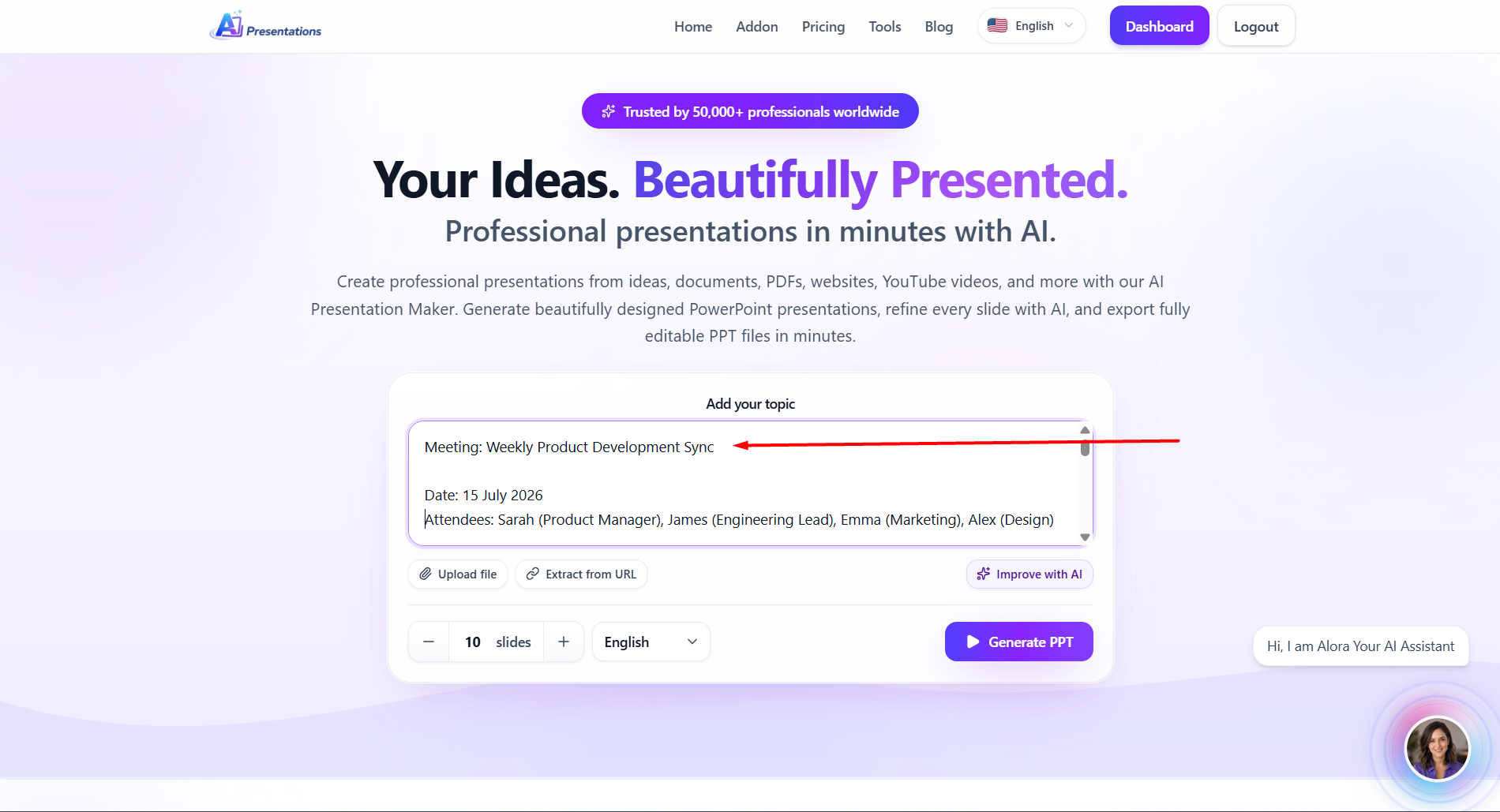
If you are spending most of your time starting from a blank PowerPoint file, AI Presentations App can help you create a structured presentation from an idea or source material, review the content, customize the slides and export the result to PowerPoint. Human review remains important: verify facts, adapt the message for your audience, and make sure the final slides communicate what you actually want to say.
For related presentation guidance, read how to make a professional PowerPoint presentation, how to turn a report into a PowerPoint presentation, and how to convert meeting notes into a presentation.
PowerPoint Slide Size: Quick Reference
| Goal | Recommended starting point | What to check |
|---|---|---|
| Modern business presentation | 16:9 Widescreen | Display compatibility and readability |
| Older projector or legacy deck | 4:3 Standard | Presentation equipment |
| Portrait document | Custom + Portrait | Text flow and vertical spacing |
| Printed presentation | Required paper/custom dimensions | Margins, paper size and scaling |
| Special digital format | Custom dimensions | Exact destination requirements |
Frequently Asked Questions
What is the best PowerPoint slide size?
For most new presentations, 16:9 Widescreen is the best starting point because it is the current default and suits most modern screens. Use 4:3 when equipment or a template requires it.
What is the size of a 16:9 PowerPoint slide?
PowerPoint’s Widescreen preset is 13.333 × 7.5 inches and has a 16:9 aspect ratio.
What is the size of a 4:3 PowerPoint slide?
The Standard 4:3 preset is 10 × 7.5 inches.
Can I enter pixels for a PowerPoint slide size?
Yes. Current PowerPoint guidance allows width and height to be entered in inches, centimeters or pixels in the Custom Slide Size dialog, within PowerPoint’s supported limits.
Will changing slide size change my content?
It can affect how existing content fits. PowerPoint may ask you to choose Maximize or Ensure Fit. Inspect important slides afterward for cropping, spacing, font size and alignment issues.
Can PowerPoint have portrait and landscape slides in the same presentation?
Not as independent slide orientations through the standard slide-size setting. The presentation uses one slide orientation. Separate presentations or other workarounds may be needed for mixed formats.
Final Checklist Before You Present
- Confirm the target screen, projector, paper size or digital destination.
- Choose 16:9, 4:3, portrait or custom dimensions before final design work.
- Save a backup before resizing an existing deck.
- Review the Maximize or Ensure Fit result.
- Check text boxes, images, charts, diagrams and logos.
- Inspect the Slide Master and recurring layouts.
- Run the slideshow on the intended display when possible.
- Export and test the final PPTX, PDF or required format.
Conclusion
Learning how to change slide size in PowerPoint is simple: go to Design > Slide Size and choose 4:3, 16:9 or a custom format. The more important decision is choosing the right dimensions for the audience and destination before you start designing.
For most modern presentations, 16:9 Widescreen is the practical default. Use 4:3 when equipment or a template requires it, and use Custom Slide Size for print, portrait layouts and specialized digital formats. When resizing an existing deck, always review the content afterward because changing the canvas can affect placement and readability.
If you want to spend less time starting from a blank presentation, AI Presentations App can help you create a structured PowerPoint presentation from an idea or source material, then refine and export it for your chosen format. For investor and business decks, explore the AI Pitch Deck Generator.